9 October 2026 · 5 min read
How to add live chat to your website
To add live chat to your website, sign up for a chat tool, copy the short snippet of code it gives you, and paste it into your site so it loads on every page. Most site builders have a box for custom code, so this takes minutes, not a developer. The harder part is everything around it: deciding who answers, what the widget says when nobody is around, and how you keep up once real people start typing. This guide covers all of it, with wording you can copy.
Decide who answers before you install anything
A chat bubble is a promise. Put one on your site and visitors expect a person on the other end, reasonably soon. So before you touch any code, answer three boring questions: who answers chats, during which hours, and what happens outside those hours.
For a team of one, the honest answer might be "me, on weekdays, between other work". That is fine. Chat does not have to be staffed around the clock. It has to be honest about when it is staffed. A widget that says "we usually reply within a few hours" and then does is far better than one that implies instant answers and then goes quiet.
Also decide where chat sits next to email. If chats live in one tool and email in another, someone will eventually reply to the same customer twice, or not at all. Keeping both in one place saves you from that particular embarrassment.
What to look for in a chat tool
You do not need many features on day one. You need a few that stop chats from falling through the cracks. When comparing tools, check for these:
- Installation by pasting a snippet, so you do not need a developer for every change.
- Styling in your own colours, so the widget looks like part of your site rather than an ad.
- A way to see chats that nobody answered in time, so you can follow up by email.
- Alerts when a live chat is waiting, so you notice without staring at a tab.
- Business hours, so the widget behaves differently when you are offline.
- Internal notes, so teammates can discuss a chat without the customer reading along.
- Email in the same inbox, if you also handle support by email.
- A free plan or trial, so you can test it on your real site before paying.
Install the widget in a few minutes
Every chat tool works roughly the same way. You create an account, open the installation or widget settings, and copy a script tag. Then you paste it into your site so it loads on every page.
Where you paste it depends on how your site is built. On a hand-coded site, put it just before the closing body tag in your shared layout or footer template. On a site builder, look for a setting called something like custom code, footer code or code injection, and paste it there once so it applies site-wide. If you use a tag manager, add it as a custom HTML tag that fires on all pages.
Then test it properly. Open your site in a private window, so you see it as a stranger would. Send a test message and check it arrives where your team will see it. Reply, and check the reply shows up in the widget. Do the same on your phone, because a bubble that covers your checkout button on mobile is a creative way to lose sales.
As an example, in suppp the live chat widget goes on your site by pasting one script tag, and you can style it in your own colours. The free plan includes the live chat widget and a shared inbox for one seat and up to 100 conversations a month, and new accounts get a 14-day Starter trial with no credit card. The screenshot shows the widget's home screen as a visitor sees it.
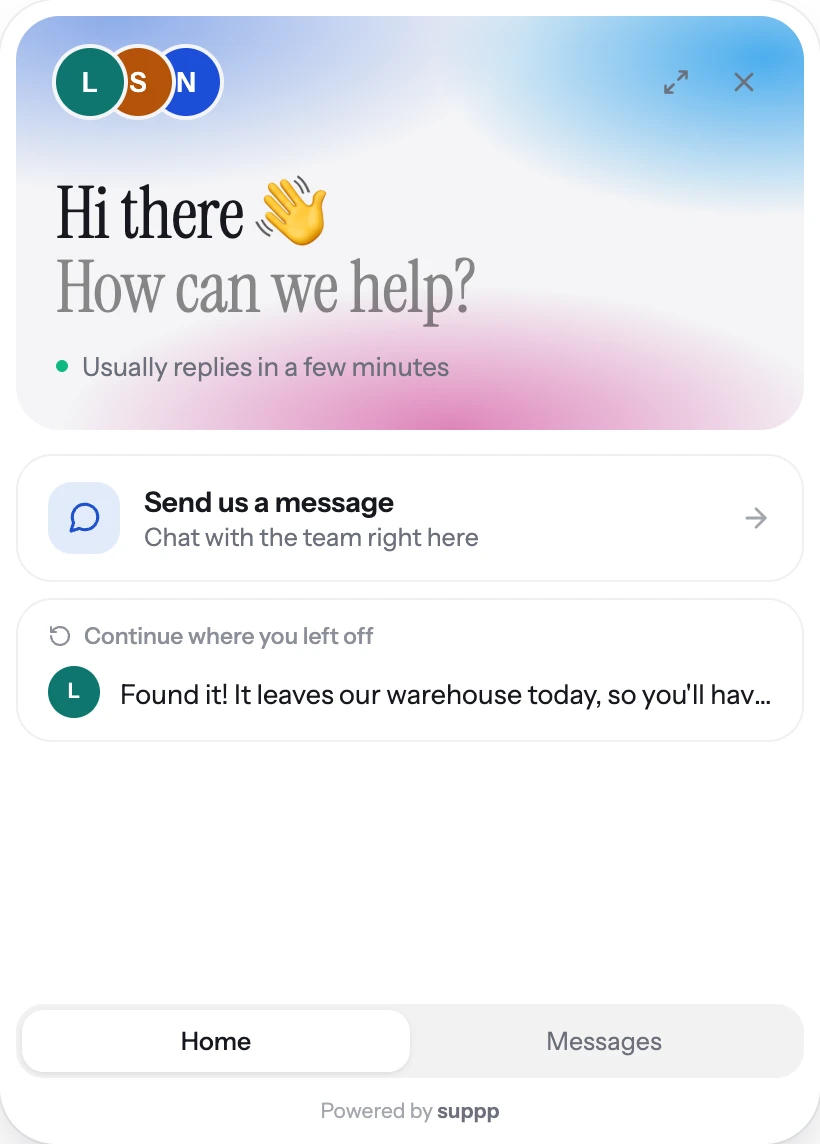
- 1Say up front how fast you reply
- 2Returning visitors pick up the same chat
Look at the line 'Usually replies in a few minutes' under the greeting, and the 'Continue where you left off' card that lets returning visitors pick up the same chat.
Write the words visitors will see
The default text in most widgets is bland. Spend ten minutes replacing it. Say who is there, how fast you reply, and what happens if you are away. Here is wording you can adapt:
- Greeting: "Hi, it's Anna and Tom. Ask us anything about orders, delivery or your account."
- Reply time: "We usually reply within a few minutes during working hours."
- Outside hours: "We're offline right now. Leave your email and question and we'll reply first thing tomorrow morning."
- First reply when it is busy: "Thanks for waiting. Let me look into this, it'll take me about five minutes."
- Handing over: "Good question for Liam, who handles billing. I've passed it to him and he'll reply here shortly."
- Closing: "Glad that's sorted. If anything else comes up, just reply here."
Keep up once chats start coming in
The first week tells you a lot. You will see which pages trigger questions, which questions repeat, and when people actually show up. Use it.
Check missed chats daily. A visitor who left before you replied is not a lost cause. If you collected an email, send a short answer: "Sorry we missed you yesterday. The answer to your question about delivery is..." People are often pleasantly surprised anyone bothered.
Give each chat one owner. When two people can see the same chat, it is surprisingly easy for both to assume the other one has it. Assign it, or agree that whoever opens it first owns it.
Save your best answers. If you type the same explanation of your returns process three times in a week, turn it into a saved reply, and while you are at it, consider whether the returns page itself needs a clearer sentence.
Finally, close chats when they are solved. An inbox full of finished conversations hides the ones that still need you.
Questions people ask
Do I need a developer to add live chat to my website?
- Usually not. Most chat tools give you a script tag that you paste into your site builder's custom code setting or your site's footer template. If you can edit your site's footer, you can install chat.
Do I have to be online all day if I add live chat?
- No. Set business hours and make the widget say clearly when you reply, and collect an email when you are offline so you can answer later. Being honest about response times matters more than being instantly available.
Will live chat replace email support?
- Rarely. Some customers prefer chat for quick questions and email for anything longer or with attachments. The practical move is to handle both from one inbox so nothing gets answered twice or not at all.
Where should the chat widget appear on my site?
- Load it on every page so it is there whenever a question comes up, typically in a bottom corner. Check it on mobile so it does not cover buttons, forms or your checkout.